Markdown Presentation & Slideshow Extension for VS Code
I have never been a fan of PowerPoint or Google Slides. I find them clunky, slow, and a pain to maintain. I much prefer writing in Markdown - it's simple, fast, and version-control friendly. But how do you present Markdown content without exporting to PDF or building a separate PPT file?
So I built the Markdown Presentation Tool - a lightweight VS Code extension that turns your Markdown files into beautiful, interactive slide decks with a single click.
It is designed to present documentation, meeting notes, or architecture diagrams without the friction of external software.
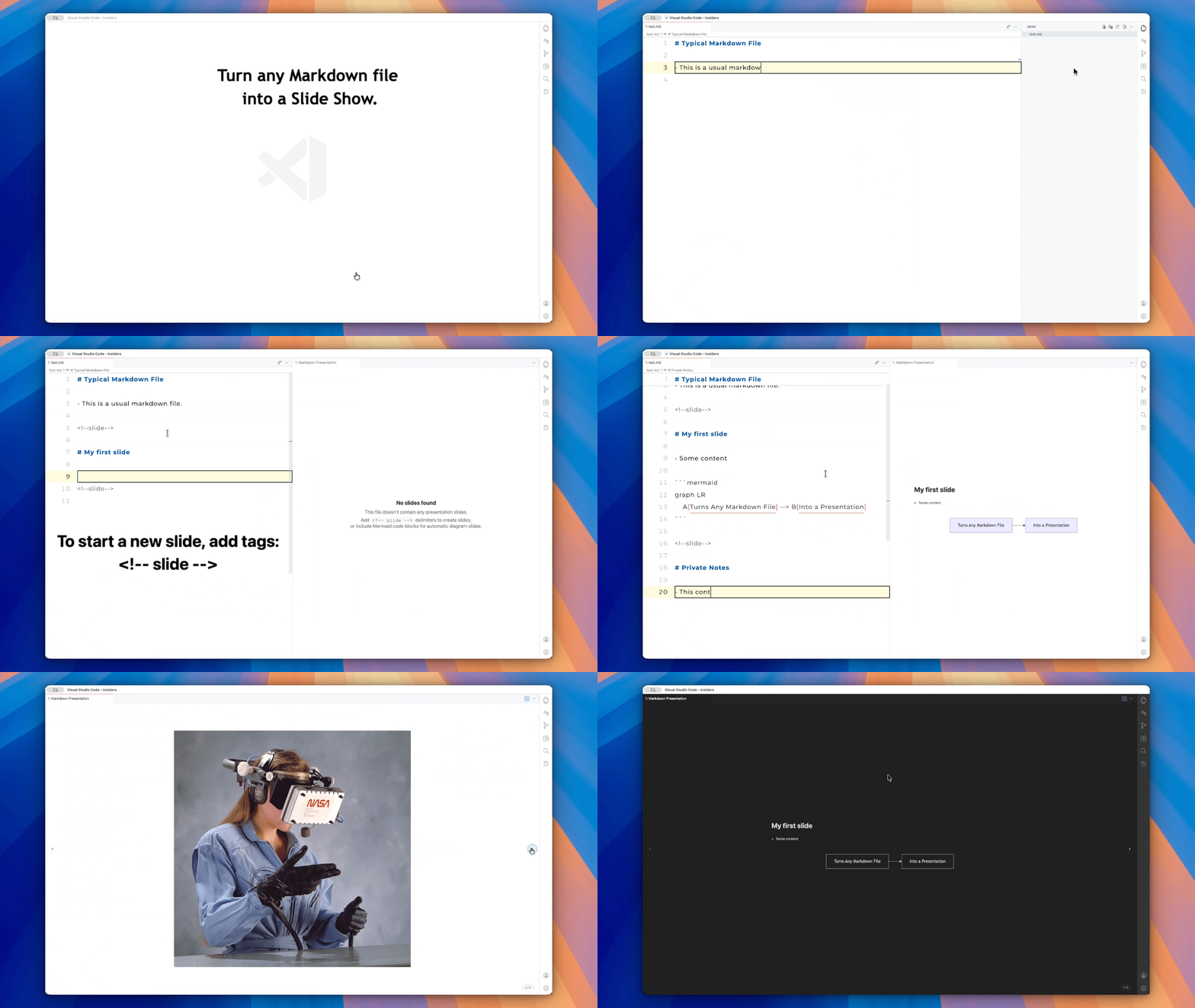
Key Features
- Native VS Code Integration: Plugs directly into your existing workflow.
- Zero Configuration: Works just like the built-in Markdown preview. Simply click the presentation icon and go.
- Real-Time Live Sync: Editor changes reflect instantly in the slideshow view.
- Full Markdown Support: Headings, lists, blockquotes, and code blocks render perfectly.
- Rich Media & Diagrams: Full support for Mermaid.js diagrams and remote images.
- Customizable Styles: Control alignment, font size, and background colors to suit your brand.
- Theme Awareness: Automatically syncs with your VS Code theme (Light/Dark) for a seamless look.
- Clean Document Structure: Uses
<!-- slide -->tags that remain invisible in standard Markdown previews, keeping your source files clean.
Getting Started
- Install the extension from the VS Code Marketplace.
- Open any Markdown (
.md) file. - Launch the Presentation:
- Click the Presentation Icon in the editor title bar (top right).
- OR open the Command Palette (
Cmd+Shift+P/Ctrl+Shift+P) and typeMarkdown: Show Markdown Presentation.
Navigation & Controls
| Action | Input |
|---|---|
| Next Slide | Right Arrow, Down Arrow, PageDown, Space, or Scroll Down |
| Previous Slide | Left Arrow, Up Arrow, PageUp, or Scroll Up |
| Internal Scroll | Shift + Scroll (for long slides) |
| Visual Navigation | Interactive arrow overlays on screen edges |
Configuration Reference
Adjust these in VS Code Settings (Cmd+, / Ctrl+,) under Markdown Presentation Tool.
| Category | Setting | Default | Description |
|---|---|---|---|
| Mermaid | markdownPresentation.slide.mermaidTheme |
default |
default (auto), dark, forest, or neutral |
| Appearance | markdownPresentation.slide.headingAlignment |
left |
left, center, or right |
| Appearance | markdownPresentation.slide.contentAlignment |
left |
left, center, or right |
| Appearance | markdownPresentation.slide.fontSize |
medium |
small (0.85em), medium (1em), or large (1.25em) |
| Appearance | markdownPresentation.slide.backgroundColor |
(empty) | Custom hex code (e.g., #1e1e1e) |
| UI | markdownPresentation.slide.showCounter |
true |
Toggle the slide counter (bottom-right) |
| UI | markdownPresentation.slide.showNavigationArrows |
true |
Toggle the on-screen navigation arrows |
How to Create Slides
Defining a slide is simple. Separate your content using the <!-- slide --> comment tag.
Markdown
<!-- slide -->

# My First Slide

Welcome to the presentation!

<!-- slide -->

# Private Notes

- Content outside of slide tags is not shown during the presentation.

<!-- slide -->

# Mermaid Diagrams Also Work Natively

```mermaid
graph LR
    A[Markdown File] --> B[Presentation]
```

- Images from the web work too!

<!-- slide -->